Change the 3DNew

Tap it and change it. Or just say it.

Tap a door, a wall or a room on the drawing or in the 3D: it lights up in both, with the changes it can take. Or say it in words; when it is not sure which wall, it asks by pointing. Then send it to your client.
Sound familiar?

One door is wrong and the 3D tool wants us to redraw the plan. So the client sees a door where the drawing has a window, or waits another day.

What changes

01

Tap it

Make it a window, flip the swing, wider, all like this one: one press each, in the 3D at once.

02

Say it

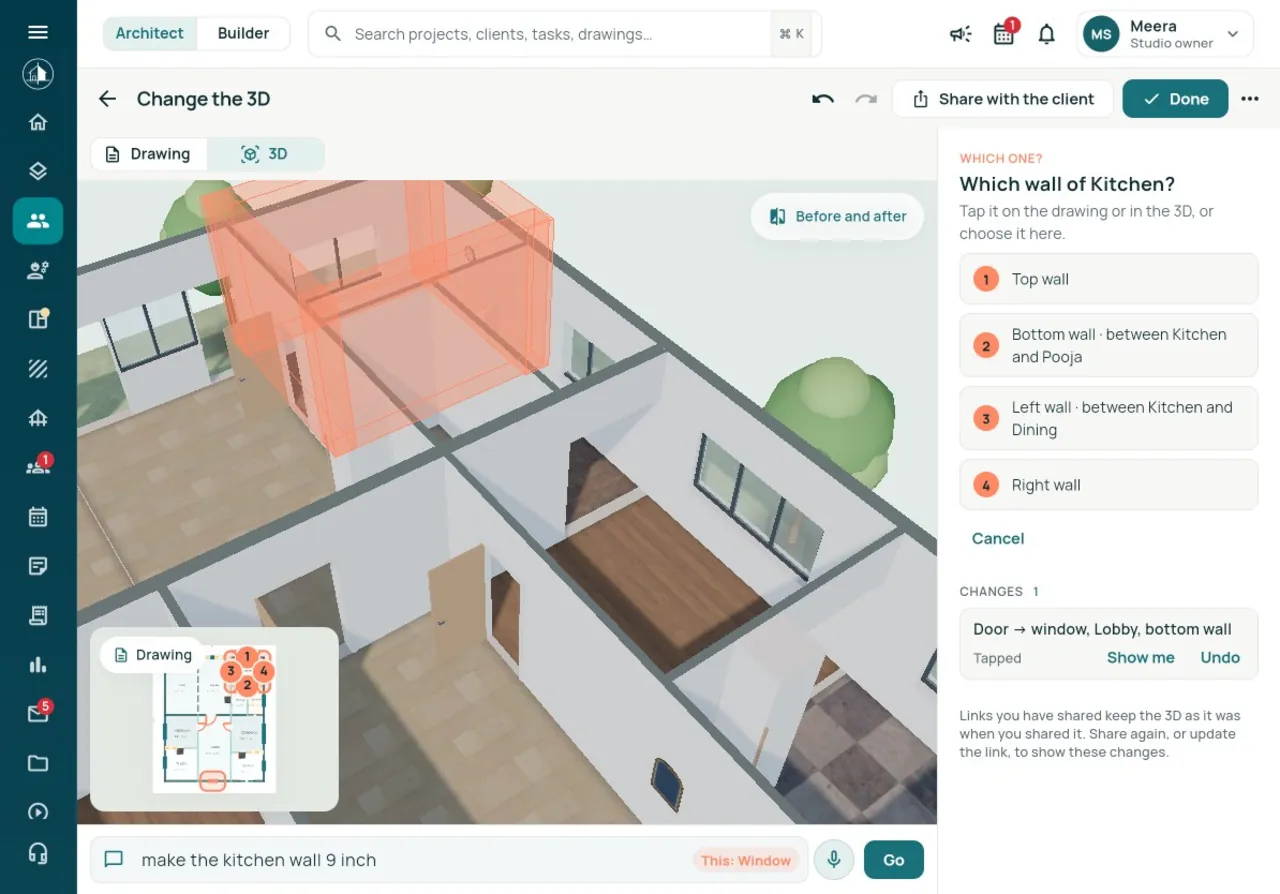
Plain words, typed or spoken; previewed before and after; when unsure, it asks which one by pointing.

03

Kept and carried

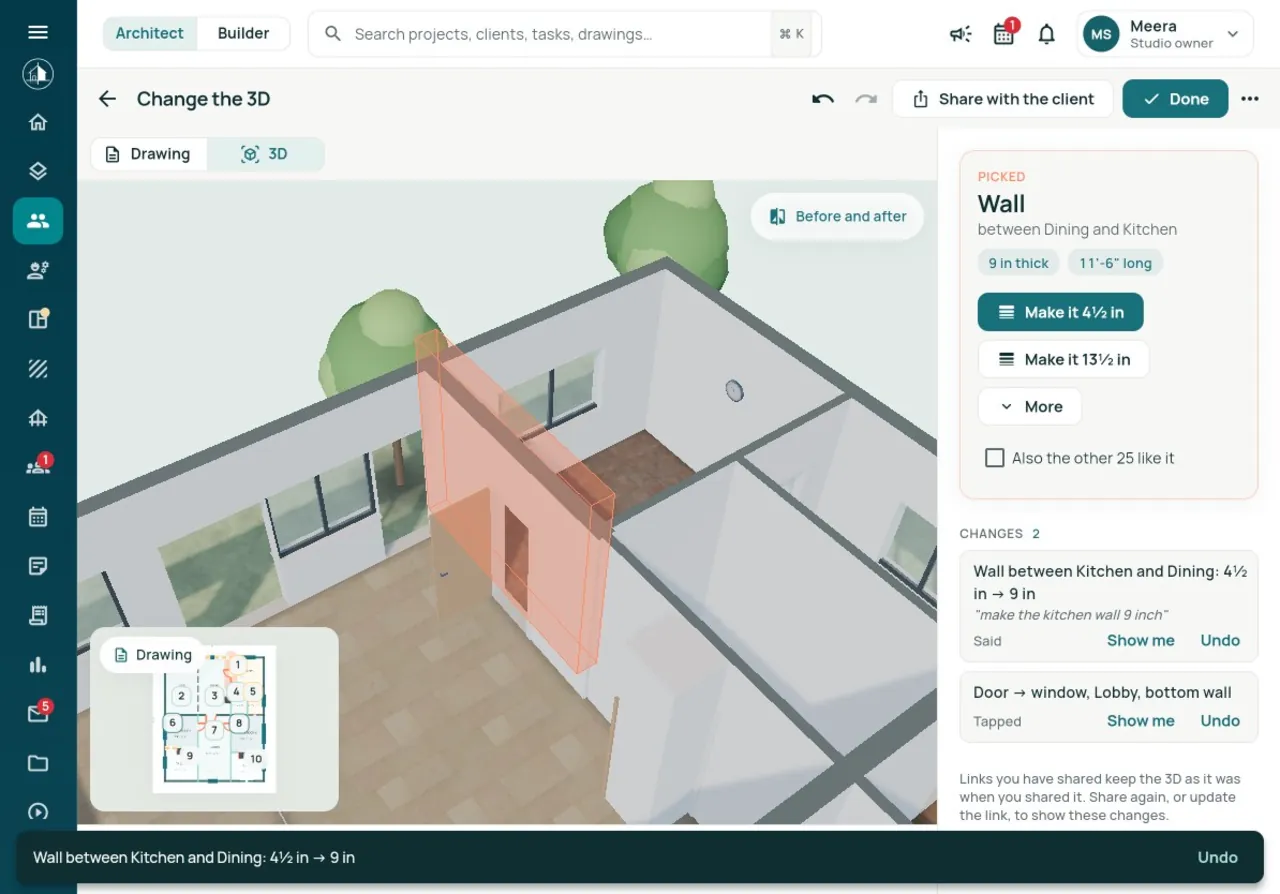
Every change listed in words with Show me and Undo, and carried to the next revision of the drawing.

Measured, not promised

  • 30 of 30test requests in plain words done right, without the AI add-on
  • 0.1 sfor a tapped change to show in the 3D
  • No appfor your client: the 3D opens from the drawing on any phone
Measured in our own tests: drawings we made in a dozen CAD styles, scans and photos included, on the app as it is today.

Where it sits in a drawing’s life

  1. A set arrives
  2. On site
  3. Revised
  4. Issued
  5. It asks
  6. The whole house
  7. Change it

Change it: whenever the 3D needs to say something the drawing did not.
What it does

  • Tap any wall, door, window or room on the drawing or in the 3D; it lights in both and the 3D turns to it.
  • One-press changes for each part, and More: sizes, kinds, swings, thicknesses, heights, room names.
  • Drag a door or a wall’s end; draw a wall; drop a door or a window.
  • Say it in words: rules understand the common ways of saying a change; with the AI add-on, anything else.
  • Before and after for every change in words; Undo, Redo and the Changes list with Show me.
  • Share with the client: they open the checked 3D from the drawing in their portal, their link or the WhatsApp drawing link.

In the app

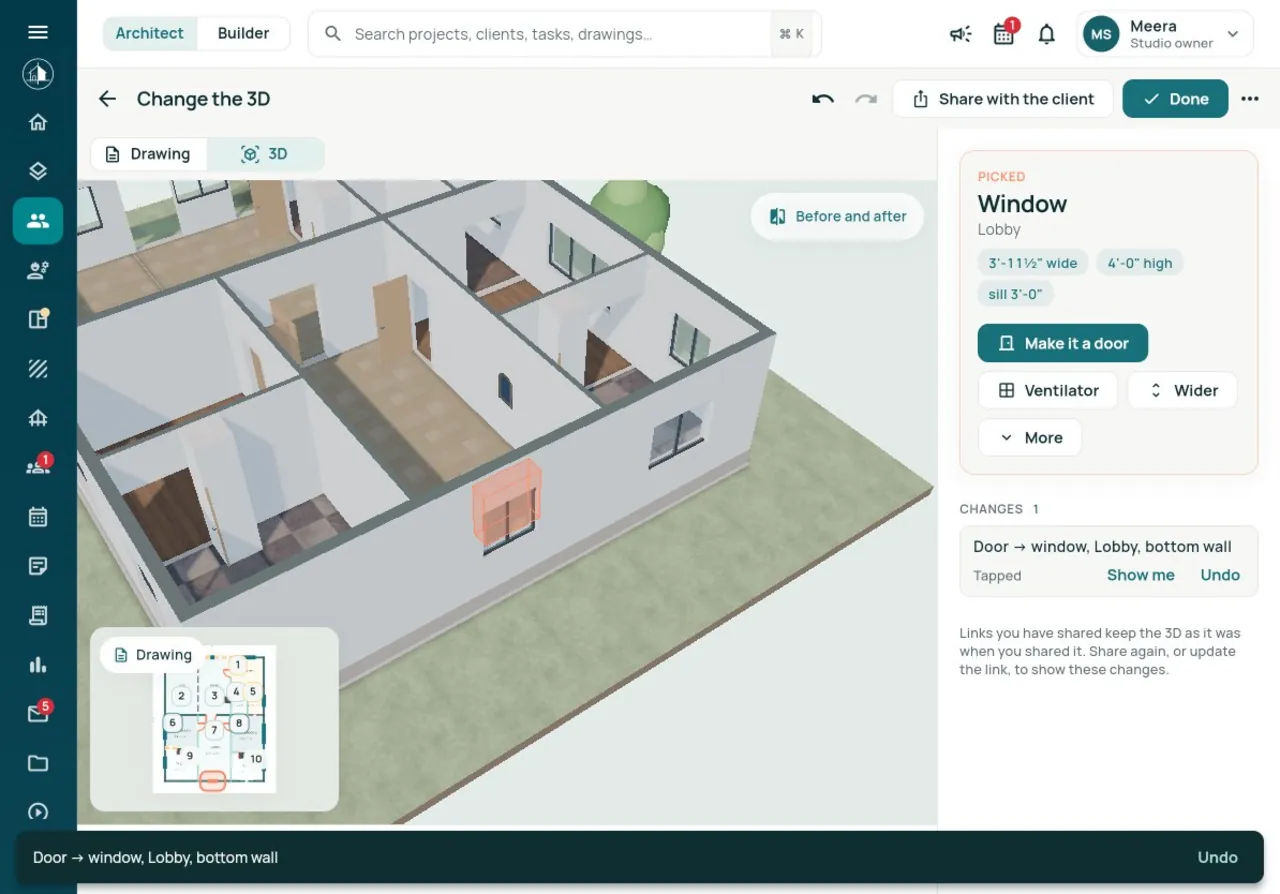
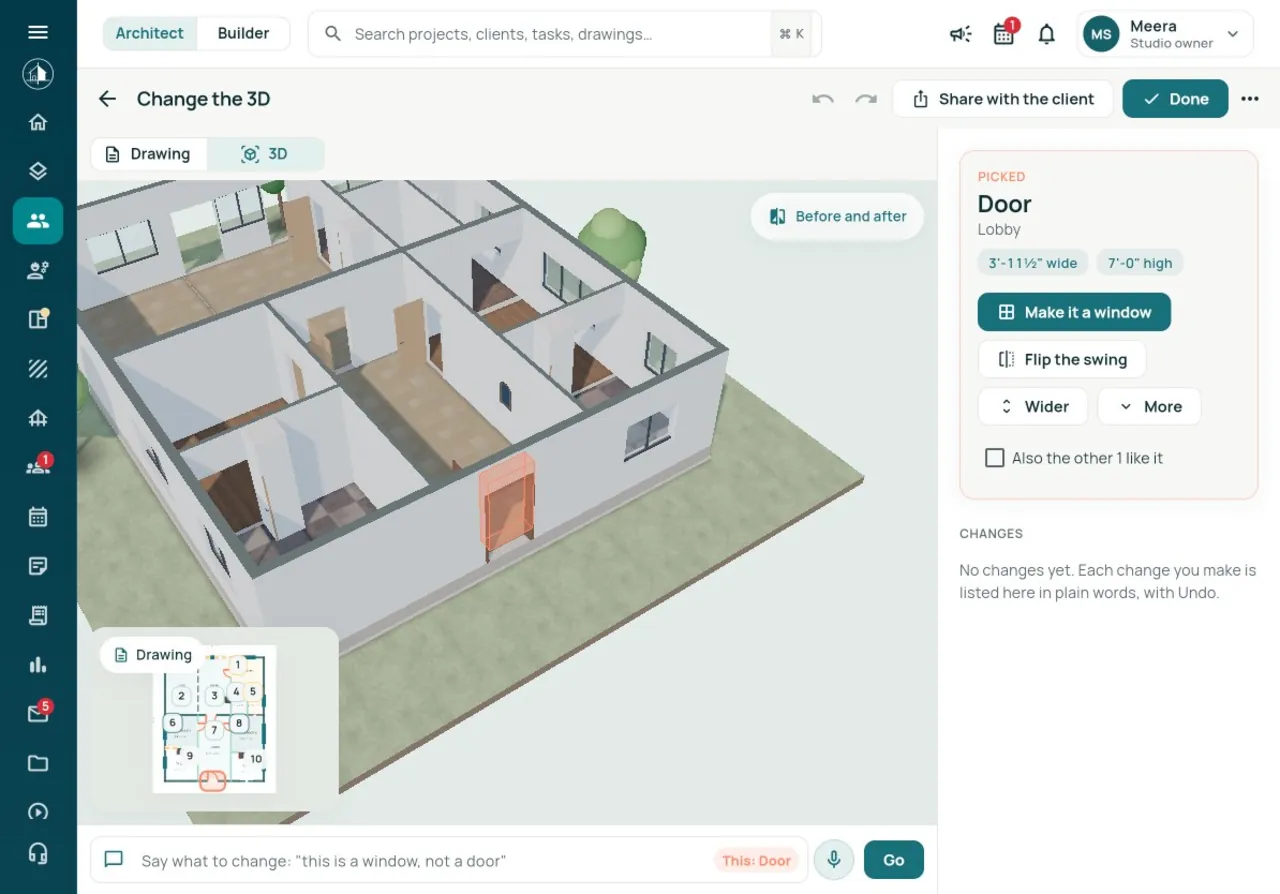
A door tapped in the 3D on an iPad: its card, Make it a window.
The door is a window, in the 3D and on the drawing.
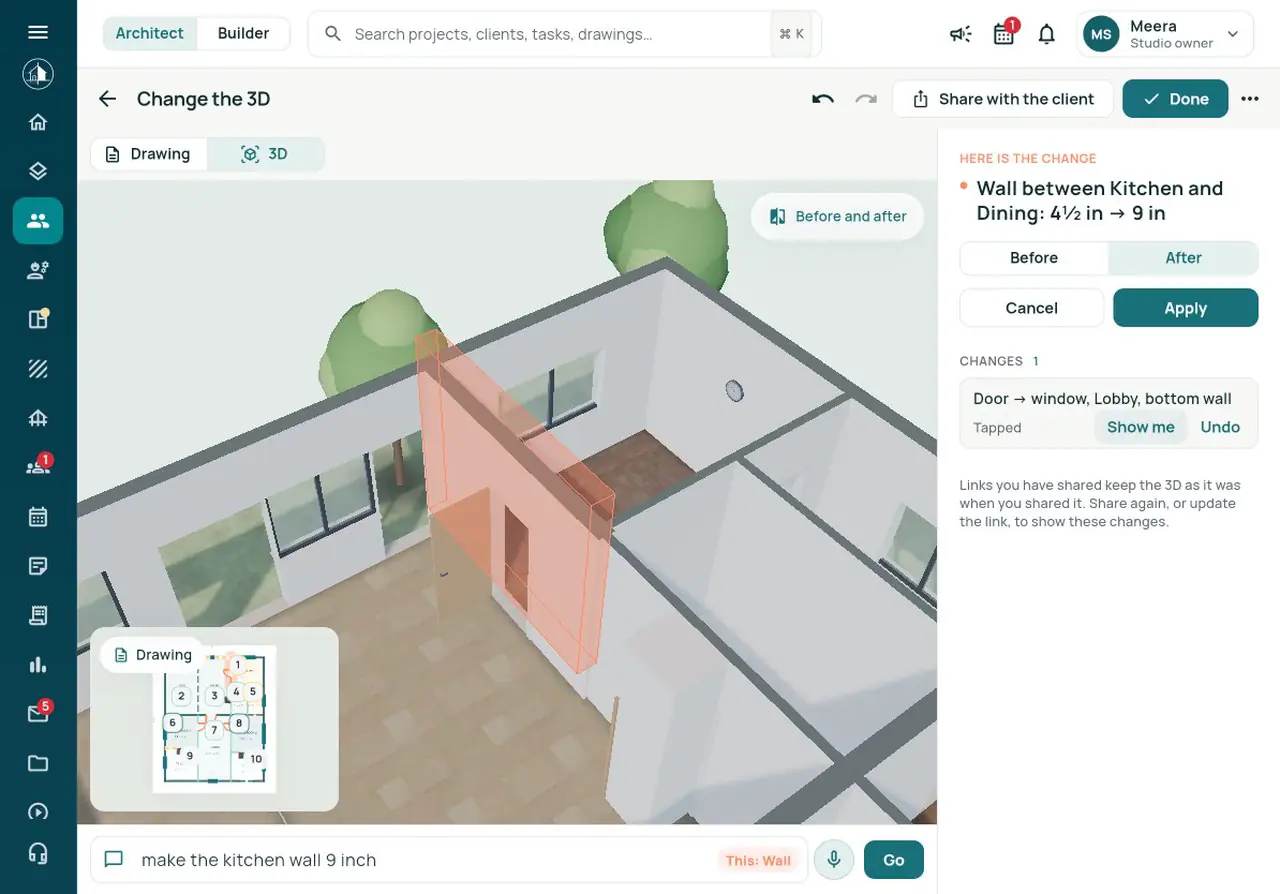
“Make the kitchen wall 9 inch.” Which wall? Pointing at each.
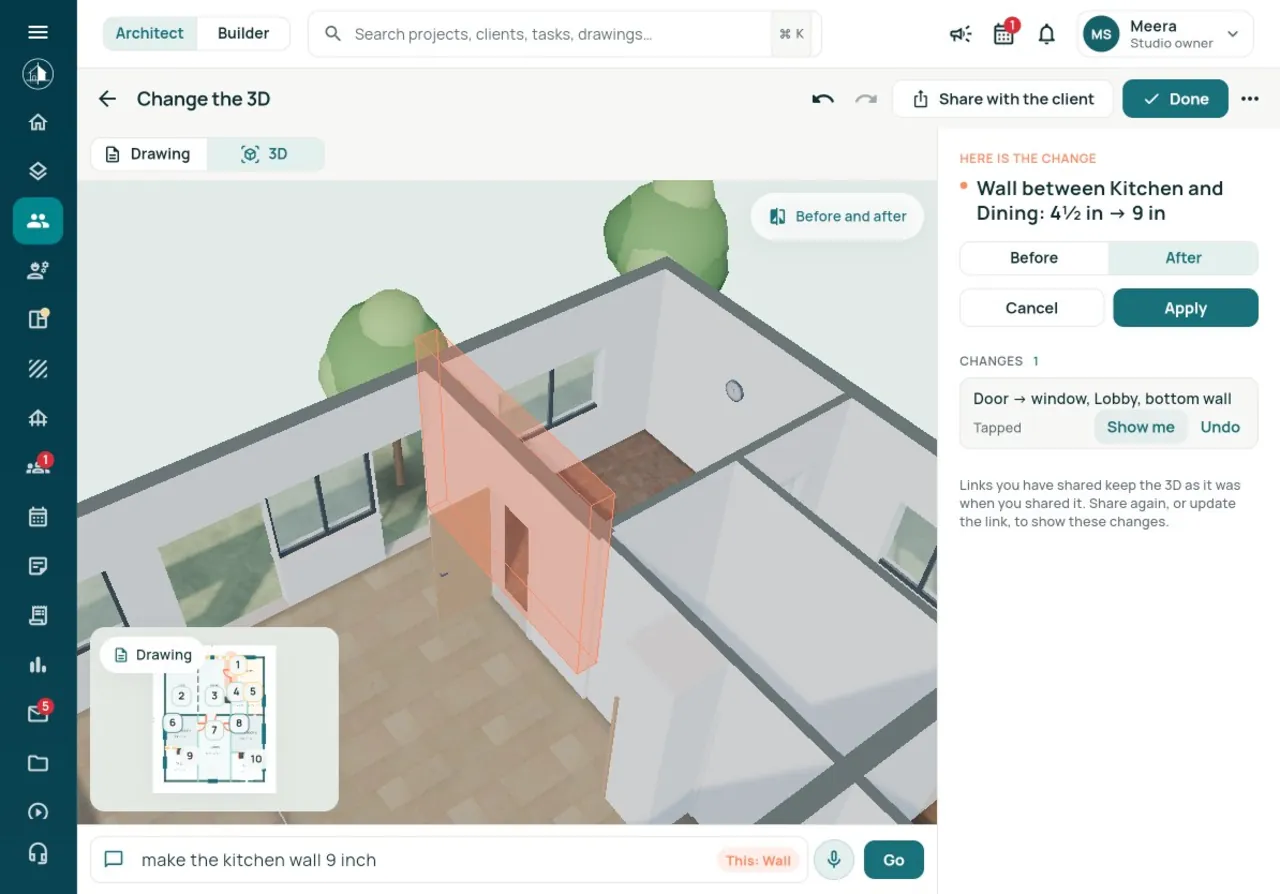
The change previewed, Before and After.
Every change listed in words, with Undo.
The client’s drawings: See it in 3D under the drawing.
The 3D tour on the client’s phone, no app.

Real screens from our demo studio, Atelier Neev (fictional data).

Questions

What can be changed?

Walls (place, length, thickness), doors and windows (kind, size, swing, sill), rooms (names, splits), heights, stairs and columns.

Does it change my PDF?

No. The drawing stays as you drew it; the changes are kept on top of it and carried to its next revision.

Does my client need the app?

No. They open the 3D from the drawing in their portal, or from the link you send, on any phone.

Coming soon

Sign-up is coming soon

We’re launching very soon. Leave your name and an email or a mobile number, and we’ll tell you the day it opens.

See everything we’ve shipped

An email or a mobile number is enough.

We use these details only to tell you when sign-up opens.