BOQ and purchase ordersNew

Price the work before it starts, and order from the same lines.

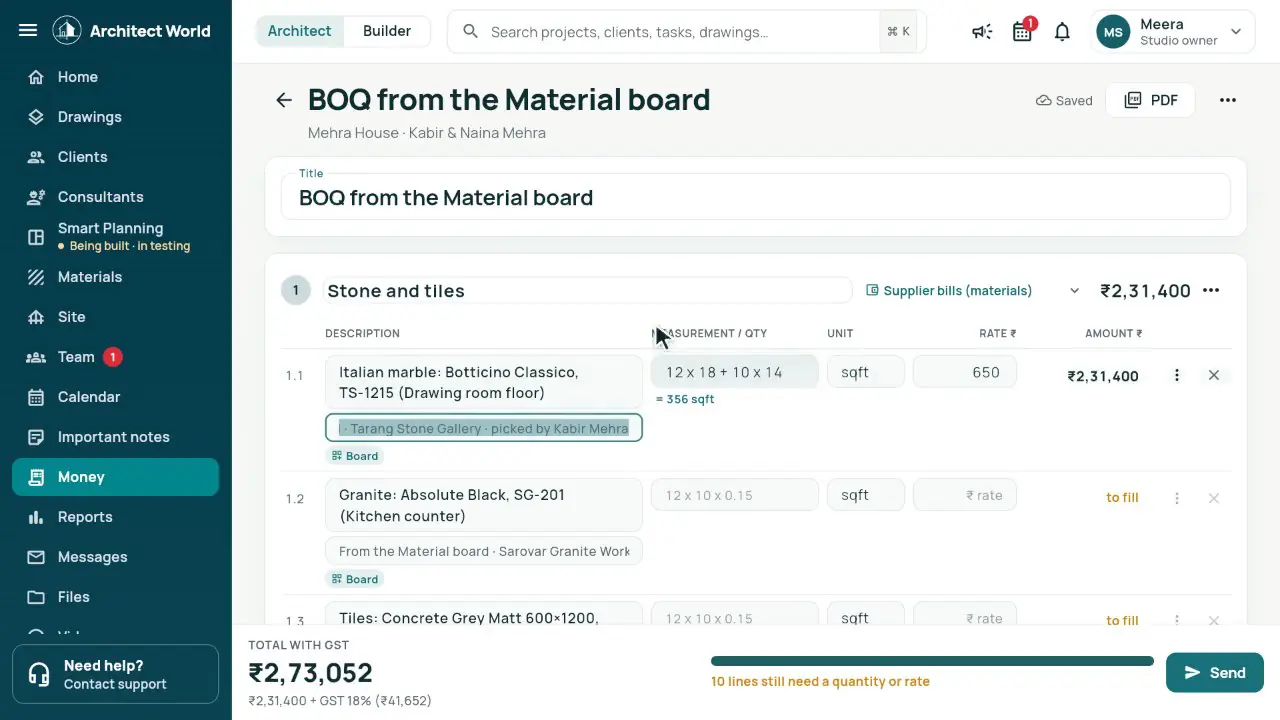
A BOQ in minutes: start from a template, the project’s Material board or the plan’s floor, wall and ceiling estimates. Type the measurements, pick your rates, and send it. The client approves it with a code; the budget and the orders follow.
Sound familiar?

The BOQ lives in an Excel sheet on one laptop. The client approves it on a call, the supplier gets a different list, and nobody can say how much of it has been ordered.

What changes

01

Measured as you type

12 x 18 + 10 x 14 becomes 356 sqft at once; the amount and the total with GST follow.

02

Approved in writing

The client reads every item on their phone and approves it with a code. Each change keeps what they saw.

03

Ordered against it

Tick lines to raise a purchase order at the BOQ’s rates; each line shows what is ordered and turns red past the BOQ.

Where it sits in your day

  1. Before the project
  2. Project costs
  3. On site
  4. Billing
  5. Month end

Project costs: once the drawings are agreed, before the first order.

What it does

  • Start from a template, the Material board, the plan’s estimates, your own Excel sheet or an earlier BOQ.
  • Sections and lines with unit, quantity, rate and amount; quantities typed as measurements; rates from your own list.
  • Send it by email, link or WhatsApp; the client approves with a code or asks for changes; versions keep each answer.
  • Set the budget fills the project’s budget by category in one click.
  • Purchase orders from ticked lines or the rates you compared, with a budget check before sending, deliveries and the supplier’s bill.
  • PDF and Excel in one click; the client’s page in your studio’s colour.

In the app

Typing 12 x 18 + 10 x 14: the area and the amount appear.
An approved BOQ: set the budget, or raise a purchase order.
Tick the lines to order at the BOQ’s rates.
Every BOQ: approved, with the client, and what is ordered.

Real screens from our demo studio, Atelier Neev (fictional data).

Questions

Can I import my own Excel BOQ?

Yes. Upload the sheet and we find the description, unit, quantity and rate columns; you check before adding.

What if the client asks for a change?

You make the next version. The approved or answered one is kept exactly as the client saw it.

Do orders count against the budget?

Yes. Orders placed count as committed in Budget vs actual until their bills arrive.

Coming soon

Sign-up is coming soon

We’re launching very soon. Leave your name and an email or a mobile number, and we’ll tell you the day it opens.

See everything we’ve shipped

An email or a mobile number is enough.

We use these details only to tell you when sign-up opens.